Best AI Tools for Removing Background Noise from Calls and Podcasts

Author
Deval Shah
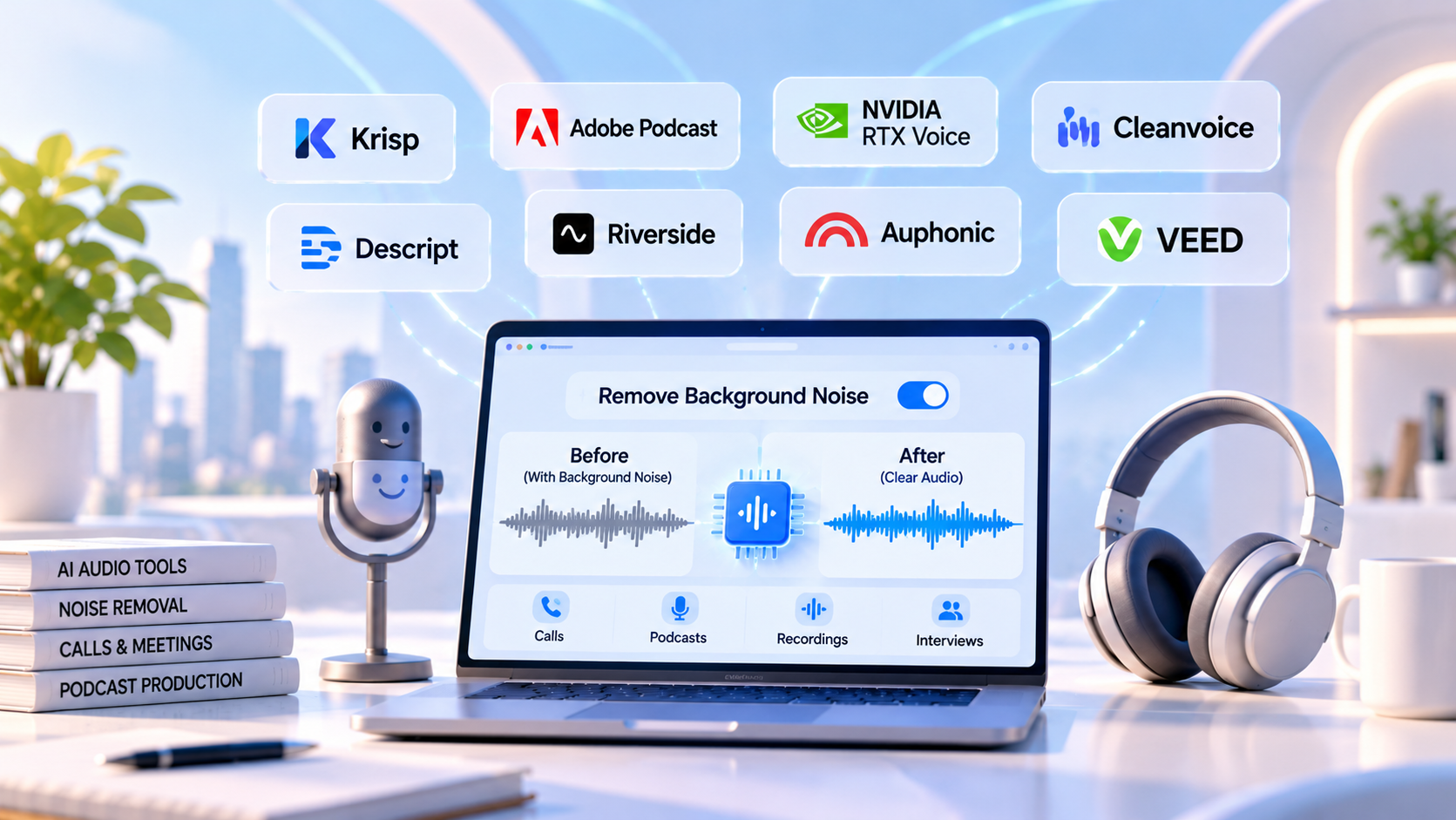
Compare AI noise removal tools for live calls and podcasts. Find options for natural voice, echo reduction, batch workflows, and budget.
Introduction
A noisy call can make a clear idea difficult to follow. A podcast recorded beside a fan, in a busy room or through a laptop microphone can sound less polished than its content deserves. AI noise removal tools can reduce distractions such as keyboard clicks, air conditioning, traffic, room echo and nearby conversation. But they do not all solve the same problem.
Some tools clean your microphone in real time before audio reaches a meeting app. Others repair an audio or video file after recording. A third group combines noise reduction with podcast editing, loudness leveling or detailed audio repair. Choose by task, not by a generic “best” ranking.
This guide compares tools by workflow, voice preservation, control over artifacts, batch processing and cost. Vendor feature claims are distinguished from independent listening-test results. This is a feature-based comparison, not a controlled benchmark.
Quick comparison
Krisp: live calls and meetings; real-time noise cancellation. Check current plan limits and supported platforms.
NVIDIA Broadcast: live calls and streaming on compatible RTX systems; free effects, but hardware is required.
Adobe Podcast Enhance Speech: quick browser-based cleanup of recorded speech; free tier has duration and daily limits.
Descript Studio Sound: podcast and video editing; enhancement integrated with transcript-based editing.
Auphonic: recurring podcast post-production; automated cleanup and loudness leveling.
Cleanvoice: podcast cleanup beyond noise, including filler-word and mouth-sound tools.
iZotope RX: detailed professional audio repair; powerful controls, with a steeper learning curve. Explore related AI tools for turning podcasts into LinkedIn posts for another content-repurposing workflow.
1. Krisp: best for live calls in noisy environments
Krisp is designed for real-time noise cancellation, making it practical for remote meetings, interviews and calls where audio needs to be cleaned as the conversation happens. It is intended to reduce distractions before or during a call rather than rescue a file afterward.
Choose it if you regularly take calls from a shared office, café, home with background activity or other unpredictable environments. Test normal speech while someone talks nearby or you type. Listen for clipped consonants, cut-off sentence endings and changes in voice tone. Confirm current pricing, trial terms and platform compatibility before subscribing.
Official site: https://krisp.ai/
2. NVIDIA Broadcast: best free option for supported RTX systems
NVIDIA Broadcast offers AI microphone effects, including noise removal and room-echo reduction, for users with compatible NVIDIA RTX hardware. It can help with live calls, streaming and recording when the computer already meets the hardware requirement.
The trade-off is compatibility. Check current hardware and operating-system requirements before planning a setup. Compare light and aggressive suppression, listening for unnatural pauses or voice changes when you move away from the microphone.
Official site: https://www.nvidia.com/en-us/geforce/broadcasting/broadcast-app/
3. Adobe Podcast Enhance Speech: best for quick recorded-audio cleanup
Adobe Podcast Enhance Speech is a browser-based option for improving recorded speech after the fact. Adobe describes it as reducing background noise, reverb and distracting sounds while making dialogue clearer. The free tier is useful for testing a short recording.
Adobe’s current plan information distinguishes free use from premium features such as video support, bulk uploads, enhancement-strength controls and higher processing limits. These differences matter when cleaning multiple interviews or long episodes.
Test a short representative clip and compare original and processed audio at matched loudness. Listen for breaths, room tone, sibilants and overly polished vocal texture.
Official pages: https://podcast.adobe.com/en/enhancespeech | https://podcast.adobe.com/en/plans
4. Descript Studio Sound: best when cleanup is part of editing
Descript combines AI voice enhancement with audio and video editing. Studio Sound is designed to reduce background noise and echo while enhancing speech, alongside transcription-based editing, filler-word removal and publishing tools.
This is convenient for creators who already edit interviews, tutorials or podcasts in Descript. The caution is that regenerative enhancement can alter a voice’s character. Use a lighter intensity when full strength sounds artificial, and check plan media-hour and AI-feature limits.
Official pages: https://www.descript.com/studio-sound | https://www.descript.com/studio-sound-2
5. Auphonic: best for repeatable podcast post-production
Auphonic is worth considering when noise reduction is one part of a regular podcast production process. Its broader focus includes automated post-production and loudness leveling, helping make episodes more consistent rather than simply quieter.
For a recurring show, evaluate batch workflow, predictable settings and processing-hour allowances. Calculate cost per finished hour and include time saved on manual leveling. Test a full episode with multiple speakers, music and changing recording conditions.
Official site: https://auphonic.com/
6. Cleanvoice: best for podcast cleanup beyond noise
Cleanvoice targets podcast post-production and offers cleanup functions beyond background noise, including filler-word and mouth-sound handling. It may suit creators who want to reduce several repetitive editing tasks in one pass.
The decision depends on whether those features solve a real bottleneck. For live calls, a real-time tool may be more appropriate. For long episodes, compare processing allowances and review output before replacing your editor.
Official site: https://cleanvoice.ai/
7. iZotope RX: best for difficult, detailed audio repair
iZotope RX is a professional audio-repair suite for users who need more control over difficult recordings. It is a stronger candidate when a file contains multiple problems or automatic enhancement leaves artifacts that need targeted correction.
The trade-off is complexity and cost. Casual podcasters may not need a deep repair toolkit, while audio editors working on client deliverables may value the control. Check current edition and license pricing.
Official site: https://www.izotope.com/en/products/rx.html
How to choose: five checks that matter more than a ranking
1. Identify when noise must be removed. Live calls need real-time processing and stable microphone routing. Recorded podcasts need file support, voice quality, editing control and export options.
2. Test voice preservation, not just silence. Listen for metallic or watery artifacts, missing consonants, clipped breaths, unnatural pauses and changes in vocal tone. Natural room ambience can sound better than aggressive processing.
3. Use the same test clip for every candidate. Include normal speech, a pause, steady noise and a brief unpredictable sound. Match playback loudness before judging.
4. Check batch processing and workflow friction. Count the steps from upload to export. Review bulk processing, file-size and duration limits, credits, project organization and separate speaker-track support.
5. Calculate real cost. Compare subscription cost with actual volume. Include free-tier caps, credits, required hardware, extra software and time spent correcting artifacts. Verify current pricing on vendor pages.
Recommended workflow for a noisy recording
1. Keep an untouched copy of the original.
2. Choose a representative 30 to 60 second section and test two or three tools.
3. Compare at similar loudness and listen for voice artifacts.
4. Apply the lightest effective cleanup. Avoid stacking multiple strong enhancers unnecessarily.
5. Review the entire episode, especially speaker changes, quiet passages and music.
6. Export in the format and quality your editor or publishing platform requires, retaining the original for future repair.
Frequently asked questions
Can AI remove all background noise from a call? No. Results depend on noise type, microphone quality, speaker distance and overlap with speech.
Should I use a live noise canceller or podcast enhancer? Use a live tool during calls and a post-production enhancer for recordings. If you record calls for a podcast, both may help.
Can AI noise removal make a voice sound robotic? Yes. Strong processing can introduce artifacts or change vocal texture. Reduce intensity when possible and prioritize natural speech.
What is the best free option? There is no universal winner. Adobe Podcast is a convenient starting point for recorded speech; NVIDIA Broadcast is attractive for compatible RTX systems needing live processing.
Is AI noise removal enough for professional podcast audio? It can be a useful first step, but professional results may also require microphone technique, editing, loudness normalization, music balancing and manual repair.
Conclusion
The best AI background noise removal tool depends on where the problem occurs. Krisp and NVIDIA Broadcast are designed for live environments, Adobe Podcast and Descript help clean recorded speech, Auphonic and Cleanvoice support podcast workflows, and iZotope RX offers deeper repair control. Start with the simplest tool that fits your job, test it on your own audio, and judge the result by natural voice quality rather than by how completely it erases the background.
Comments (0)
No comments yet. Be the first to share your thoughts!